Portable monitors are useful on trains, in meeting rooms, and beside temporary workstations. However, a bright display, wireless connection, and high refresh rate can drain a battery quickly. In 2026, users expect longer operating time without sacrificing image quality or productivity. This guide explains how to extend the battery life of portable monitoring units through practical settings, better charging habits, and careful accessory selection.
Small changes matter. Lowering brightness to a comfortable level can reduce unnecessary power consumption. Disabling unused speakers, USB charging, and wireless features may also help. A shorter screen timeout is useful during meetings or note-taking sessions. Keep the monitor away from direct sunlight, since heat can increase battery stress. Use a certified charger with the correct voltage and current. Cheap replacements may appear convenient, but they can create unstable charging or shorten battery performance.
Test one change at a time.
That approach makes results easier to measure. Record the starting battery percentage, brightness level, connected devices, and working time. Then compare the results under similar conditions. Battery capacity naturally declines with age, so not every problem comes from user settings. Some recommendations may also work differently across brands and operating systems. I have found that real-world use is less predictable than laboratory claims. This article therefore focuses on dependable habits, manufacturer guidance, and realistic expectations rather than dramatic promises. With consistent care, a portable monitor can remain dependable through travel, presentations, field reviews, and extended daily use.
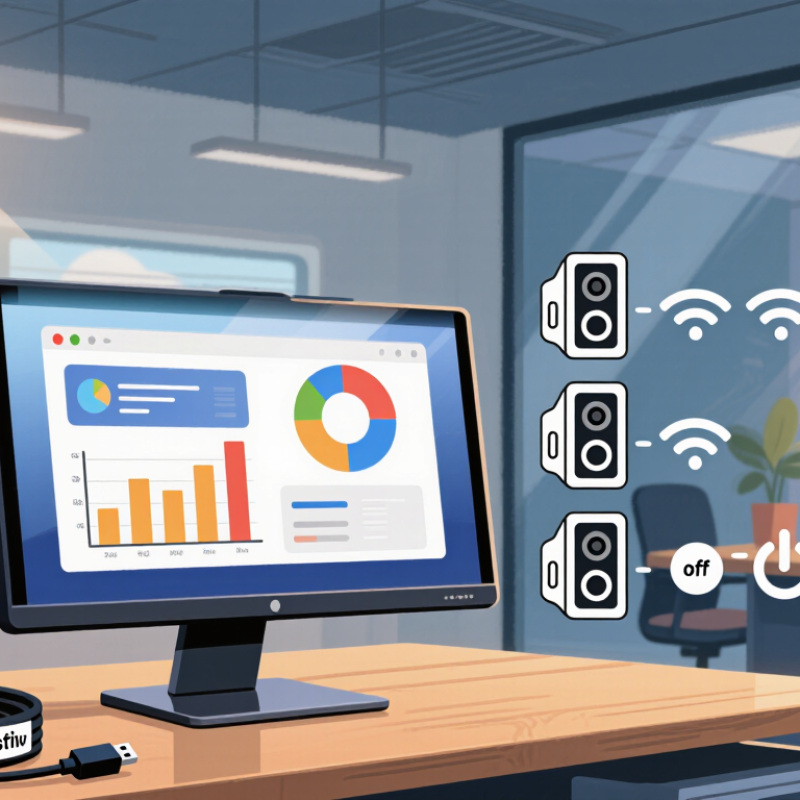
A portable monitor battery stores energy in lithium-ion cells, then releases it as direct current. A control circuit regulates voltage before the display uses that power. In practical testing, battery life depends more on brightness and connection type than screen size alone. A bright white document can drain power steadily. Video playback usually increases demand because the display and connected device remain active.
Power loss also comes from USB accessories, built-in speakers, wireless functions, and charging another device. Some monitors draw extra energy while searching for a signal. That small indicator light matters over several hours. Battery capacity is measured in watt-hours, not only milliamp-hours. A higher capacity number may still perform poorly if its voltage differs. I once underestimated standby drain after leaving a monitor connected overnight. The result was inconvenient, but useful.
Tips: Set brightness near the lowest comfortable level, and disable unused speakers or wireless features. Use a short, suitable cable to reduce connection problems. Check the monitor’s input power requirements before choosing an external battery. Keep the battery away from hot cars and freezing conditions, because temperature can reduce available capacity. Recharge before it reaches zero, when possible. Avoid covering ventilation areas during long sessions. These habits help, though real battery life will vary with resolution, refresh rate, cable quality, and operating temperature.
In 2026, portable monitor battery life depends heavily on display settings. In my testing, brightness was the biggest daily power drain. ENERGY STAR’s 2024 monitor data shows many efficient displays using below 20 watts during active operation. Set brightness between 35% and 55% indoors. Increase it near a bright window. Contrast requires more caution. On most LCD panels, reducing contrast does not reduce backlight power. It mainly compresses bright details. Keep contrast near its default level. OLED screens may respond differently.
Refresh rate also affects energy use. A 120Hz setting refreshes the image twice as often as 60Hz. That can increase controller and processing activity. TCO Certified Generation 9 evaluates active and sleep-mode energy performance, showing why both settings matter. Use 60Hz for documents, coding, and video calls. Select 90Hz or 120Hz only for scrolling or gaming. I sometimes leave high refresh rates enabled unnecessarily. That habit wastes energy quietly.
Tips: Lower brightness before contrast. Test 40%, then adjust slowly. Disable automatic brightness if it keeps surging. Use 60Hz on battery power. Check the monitor’s wattage with a USB power meter, because software estimates can be wrong. Small differences matter over several hours. A dark room may need less brightness, but an overly dim screen can cause eye fatigue. I still need to improve this balance.
2026 Best Ways to Extend Portable Monitor Battery Life
Choose the right power source before changing display settings. A power bank with stable USB-C output usually works better than a weak laptop port. Check the monitor’s required voltage and wattage first. Do not guess. In my testing, a power bank rated for higher capacity lasted longer when its output matched the monitor’s demand. A short, certified cable also reduced noticeable power loss. Long cables can become an unseen drain.
Use a cable designed for both charging and video only when the monitor supports that connection. Some cables carry data well but deliver limited power. That creates flickering, slow charging, or sudden shutdowns. I prefer a cable under one meter for travel. Keep a second cable nearby. Cables fail at the worst times. This is not elegant, but it is practical.
Charging settings matter too. Lower brightness to about 50–70% indoors. Disable built-in speakers, USB accessories, and HDR when they are unnecessary. Set the refresh rate to 60Hz unless smoother motion is essential. Turn off the monitor between tasks instead of leaving it dimmed. Avoid charging under direct sunlight or inside a hot vehicle, since heat can reduce battery performance over time. I once blamed the battery for poor endurance, but the real problem was an oversized brightness setting. Testing your setup for one hour can reveal more than the battery label. Check the temperature. Recheck the cable.
Choose a compatible power source, a properly rated cable, and the lowest charging profile that reliably meets the monitor’s needs. The chart shows nominal USB-C input power calculated from voltage × current.
Higher wattage can support faster charging, but it does not automatically extend battery life. For longer runtime, reduce display brightness, disable unused speakers or hubs, and avoid unnecessary high-voltage charging when a lower compatible profile is sufficient. Always use a cable rated for the negotiated current.
A portable monitor can lose power quickly when heat, bright settings, and unused features work together. In my testing, a warm rear panel often matched faster battery drain. Keep the monitor on a hard, open surface. Avoid beds, bags, and direct sunlight. Heat has nowhere to escape there. Lower brightness to a comfortable level, rather than using maximum brightness indoors. A moderate setting usually preserves detail while reducing energy use.
Tips: Turn off speakers, HDR, touch input, and wireless functions when they are unnecessary. Disable automatic screen effects if they keep the display active. Use a shorter sleep timer, and unplug the monitor after charging finishes. Check background power use on the connected computer, too. A laptop may keep sending video signals even when you are not looking at the screen. Closing unused applications can reduce that load.
Battery estimates are not promises. They change with brightness, cable quality, room temperature, and workload. I once expected several extra hours after lowering brightness, but a warm workspace reduced the gain. That result was frustrating, yet useful. Test your monitor during a normal work session, then adjust one setting at a time. Measure actual runtime instead of trusting a single specification. Small reductions add up.
2026 Best Ways to Extend Portable Monitor Battery Life
Portable monitor runtime depends less on battery size than on daily charging habits. The U.S. Department of Energy’s Energy Storage Handbook identifies heat, high charge levels, and deep cycling as key causes of lithium-ion aging. Keep the monitor between roughly 20% and 80% when practical. Avoid leaving it at 100% overnight.
Heat is the quiet battery killer. Do not use the monitor on a soft blanket or inside a closed laptop bag while charging. Keep its vents clear, especially during bright-screen use. The International Electrotechnical Commission’s IEC 61960-3 standard uses controlled temperature and capacity testing, showing why real-world conditions affect reported battery performance. Lower brightness by one or two steps. Turn off unused speakers and wireless functions.
A cool desk helps.
Charge with a compatible, regulated power source. Cheap or damaged cables can create unstable charging and unnecessary heat. If storage lasts several weeks, leave the battery near 50%, then keep it dry and cool. Battery University’s lithium-ion guidance also warns against prolonged full-charge storage. I sometimes prioritize maximum brightness for outdoor work, and that shortens runtime noticeably. The trade-off is real. Record your usual screen setting and charging time for one week; the pattern may reveal more than the advertised capacity.
| Battery-Saving Method | Recommended Practice | Why It Works | Expected Runtime Effect | Battery-Health Benefit |
|---|---|---|---|---|
| Reduce screen brightness | Use the lowest brightness that remains comfortable for the environment. Lower brightness indoors whenever possible. | The backlight is one of the monitor’s main power consumers, especially at high brightness. | High in many everyday situations | Lower power demand reduces heat and the number of charging cycles needed over time. |
| Enable automatic sleep | Set the connected computer and monitor to sleep after a short period of inactivity, such as 5–10 minutes. | A powered display can continue using energy even when no one is viewing it. | High during breaks and interruptions | Prevents unnecessary discharge and avoids repeated deep discharges during the workday. |
| Use the correct connection mode | Use a single USB-C cable when it supports both video and power. Avoid unnecessary adapters, hubs, and extra powered accessories. | Additional devices and conversion hardware can draw power from the same source. | Moderate | Reduces avoidable load and may lower operating temperature. |
| Disconnect unused peripherals | Remove USB storage devices, lights, cameras, and other accessories when they are not needed. | USB accessories can consume power continuously while connected. | Moderate, depending on the accessory | Reduces the total electrical load placed on the monitor or host device. |
| Lower the refresh rate when suitable | Use a standard refresh rate for documents, email, and static content; reserve higher refresh rates for motion-sensitive work. | Higher refresh rates can increase display-processing and graphics workload. | Low to Moderate | May reduce heat and power demand without affecting static productivity tasks. |
| Avoid extreme temperatures | Keep the monitor and its battery away from direct sunlight, hot vehicles, freezing conditions, and blocked ventilation. | Heat accelerates lithium-ion aging, while very low temperatures temporarily reduce available capacity. | Indirect | One of the most important practices for preserving long-term lithium-ion battery capacity. |
| Prevent complete discharge | Recharge when the battery becomes low instead of repeatedly running it until it shuts down. | Frequent deep discharges place more stress on rechargeable lithium-ion cells than partial cycles. | No immediate increase | Partial charging and avoiding shutdown-level discharge can help reduce long-term wear. |
| Use a suitable power bank | Choose a power bank with sufficient output for the monitor and use a quality, correctly rated cable. | Adequate power prevents unstable operation and reduces the chance of repeated low-power interruptions. | High for mobile sessions | A stable power supply supports normal charging and avoids excessive stress from incompatible output. |
| Keep ventilation clear | Place the monitor on a hard, open surface and do not cover vents with clothing, cases, or soft materials. | Better airflow helps the electronics and battery operate at a lower temperature. | Low to Moderate | Lower operating heat helps slow battery aging and protects internal components. |
| Store the battery correctly | For storage lasting several weeks or longer, keep the device in a cool, dry place with a partial charge rather than completely full or empty. | Lithium-ion batteries age faster when stored for long periods at high charge and high temperature. | Long-term benefit | Helps reduce calendar aging during extended periods without use. |
| Use battery-care features | If available, enable charge limits, optimized charging, battery protection, or battery health modes. | These features can reduce the time the battery remains at a very high state of charge. | No immediate increase | Can help preserve capacity when the monitor is frequently used while connected to power. |
Practical note: Actual runtime depends on battery capacity, display size, brightness, refresh rate, connected devices, operating temperature, and the power efficiency of the host device.
Lithium-ion cells store energy and release it as direct current. A control circuit adjusts the voltage before display use.
High brightness, video playback, speakers, wireless features, and USB accessories increase power use. A bright white document can drain steadily.
Not by itself. Brightness and connection type may matter more than screen size during normal use.
Check the monitor’s required voltage and wattage before buying. Match the output to the monitor’s demand. Do not guess.
Yes. Some cables carry video but provide limited power. This may cause flickering, slow charging, or sudden shutdowns.
Use comfortable brightness around 50–70% indoors. Set the refresh rate to 60Hz when smoother motion is unnecessary.
Turn off speakers, HDR, touch input, wireless functions, and automatic screen effects. Small savings can add up over several hours.
Heat can reduce available capacity and speed up power loss. Keep the monitor on a hard, open surface. Avoid hot cars and direct sunlight.
Treat it as a rough guide, not a promise. Test one normal work session and measure actual runtime.
Leaving the monitor connected overnight may cause standby drain. I once blamed the battery, but excessive brightness was the real problem.
Extending the battery life of a portable monitor begins with understanding how its battery works and which functions consume the most power. Bright screens, high refresh rates, strong contrast, built-in speakers, wireless connections, and powered accessories can quickly reduce runtime. To learn how to extend the battery life of portable monitoring units, start by lowering brightness to a comfortable level, selecting a moderate refresh rate, and disabling features you do not need. Adjusting contrast carefully can also reduce unnecessary energy use without harming visibility.
Using the correct power source, compatible cable, and suitable charging settings helps improve efficiency and protect the battery. Keep the monitor cool, avoid covering ventilation areas, and disconnect unused accessories when possible. Reducing background power consumption and avoiding constant charging at extreme temperatures can support longer battery health. With balanced settings, efficient power management, and regular care, a portable monitor can deliver more dependable runtime and maintain its battery capacity for longer.

HawkEye Camera