In today's digital age, the ability to monitor spaces remotely has become essential. Many users seek effective methods for surveillance. One popular solution is utilizing PTZ cameras. These offer flexibility and robust features. However, many wonder how to remote control a PTZ camera via smartphone. Expert Michael Johnson, a leading figure in security technologies, states, "The convenience of managing your camera from a smartphone makes surveillance accessible to everyone."
Using a smartphone to control a PTZ camera opens doors to various practical applications. Users can pan, tilt, and zoom effortlessly, allowing a complete view of their environment. This technology can vastly improve security measures in homes and businesses alike. However, mastering remote access can sometimes be daunting. Some face connectivity issues or software glitches that need troubleshooting.
In this guide, we will explore simple steps to effectively control your PTZ camera through a smartphone. You'll learn about connectivity methods and user-friendly apps. Understanding these processes can lead to greater security and peace of mind. By following these instructions, you will gain insights into maximizing your surveillance capabilities.
Understanding PTZ Cameras and Their Features
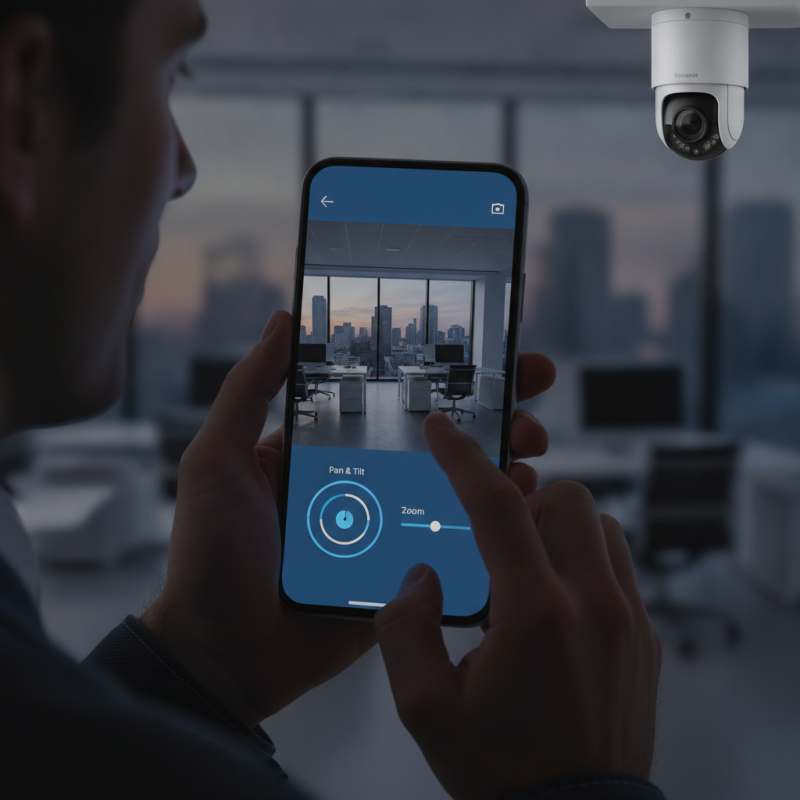
PTZ cameras, or Pan-Tilt-Zoom cameras, are versatile surveillance devices. They allow users to control the camera’s movement and zoom level remotely. This feature is particularly helpful for monitoring large areas. PTZ cameras can pan left and right, tilt up and down, and zoom in on specific details. They are often used in homes, businesses, and public spaces.
When choosing a PTZ camera, consider its resolution and night vision capabilities. A high-resolution camera provides clearer images. Night vision allows for effective monitoring in low-light conditions. Look for cameras with user-friendly apps for smartphone control. Such apps enhance accessibility and convenience for remote viewing.
Tips: Ensure your smartphone is compatible with the camera app. Check for updates regularly. Good internet connectivity is necessary for seamless operation. Be aware of the camera’s field of view. This will help you effectively cover more area without needing constant adjustments. Adjusting settings may sometimes be challenging, but it can lead to better surveillance.
Choosing the Right Smartphone App for PTZ Control
When it comes to controlling a PTZ camera from your smartphone, choosing the right app is crucial. Not all applications offer the same capabilities or user experience. A high-quality app should provide an intuitive interface that allows you to pan, tilt, and zoom easily. Look for apps that offer customizable settings. This way, you can adjust the camera to suit your specific needs.
Another important factor is compatibility. Ensure the app works seamlessly with your camera model. Some apps come with advanced features like motion detection notifications or cloud storage options. These can enhance your security experience. However, be cautious of apps that require excessive permissions or seem overly complicated. A streamlined app can often offer a better user experience than one cluttered with too many features.
Testing different options is key. Some apps may not perform reliably, leading to frustration. Focus on user reviews for insights on performance and reliability. If an app requires frequent updates or often crashes, it may not be worth your time. Finding the right balance between features and usability can make remote viewing effective and enjoyable.
How to Control PTZ Camera with Smartphone for Remote Viewing? - Choosing the Right Smartphone App for PTZ Control
| App Name |
Platform |
Features |
User Rating |
Price |
| SmartCam Control |
iOS, Android |
Live streaming, PTZ control, motion notifications |
4.5/5 |
Free |
| Camera Viewer Pro |
iOS, Android |
Multi-camera support, remote control, cloud recording |
4.0/5 |
$4.99 |
| PTZ Controller |
Android |
Zoom, tilt, pan controls, preset positions |
4.8/5 |
Free |
| Home Security Cam |
iOS |
Night vision, two-way audio, scheduled recording |
4.3/5 |
$3.99 |
| Surveillance Master |
Android |
Real-time alerts, video playback, mobile access |
4.6/5 |
Free |
Connecting Your PTZ Camera to Wi-Fi for Remote Access
Connecting a PTZ camera to Wi-Fi is the first step for remote access. Start by locating the camera’s
reset button. This allows you to set it up with a fresh configuration. Once you reset the device, it enters the setup mode,
seeking a Wi-Fi connection.
Now, use a smartphone app provided for the camera setup. Follow on-screen instructions to scan for your network. Make sure
to enter the correct Wi-Fi password. A stable connection is essential. If the camera fails to connect, check the signal strength
in that area. Sometimes, moving closer to the router helps improve connectivity.
Testing is important. After the connection, open the app to verify that you can view
the camera feed. Sometimes, the feed may lag or not display correctly. Adjust camera settings, like resolution and frame rate,
to optimize performance. If issues persist, consider troubleshooting common problems. These include network interference or
incorrect settings. Regularly checking the connection ensures reliable remote viewing.
Configuring Camera Settings for Optimal Remote Viewing
To set up your PTZ camera for optimal remote viewing, begin by accessing its configuration settings. Ensure your camera is connected to a reliable Wi-Fi network. A weak connection can lead to lag or loss of signal. Adjust the resolution settings based on your internet speed. Higher resolutions require more bandwidth. Test to find a balance between quality and performance.
Another crucial aspect is the camera’s field of view. Adjust the angle to cover the most critical areas of interest. Use preset positions for quick access to essential views. This can save time when monitoring specific locations. Regularly review the camera's performance and make necessary adjustments. Conditions may change, and revisiting settings is vital for continued effectiveness.
Consider enabling motion detection notifications. This feature can alert you to any action within the camera’s field. However, be prepared for false alarms due to shifts in light or weather. Striking a balance between sensitivity and accuracy is essential. Always keep your camera software updated. Outdated firmware can lead to security vulnerabilities. Regular updates ensure you benefit from enhancements and patches.
PTZ Camera Remote Viewing Performance Metrics
This bar chart illustrates the performance metrics for PTZ (Pan-Tilt-Zoom) cameras when controlled via a smartphone for remote viewing. Metrics include resolution, frame rate, and latency, which are crucial for optimal remote viewing experiences.
Controlling PTZ Functions from Your Smartphone in Real-Time
Controlling PTZ (Pan-Tilt-Zoom) cameras via smartphone is growing in popularity.
Real-time control enhances surveillance effectiveness. A report from
MarketsandMarkets states that the global PTZ camera market will reach
$4.5 billion by 2026, fueled by demand for
smart security solutions.
To effectively manage PTZ functions, one must understand the interface. Most apps
offer simple touch controls, enabling smooth panning and tilting. The ability to
zoom in on specific areas is invaluable for security professionals. Ensure your
camera supports motion detection for optimized monitoring. Regular updates to your
app can prevent glitches.
Tips: Regularly check your network connection. A stable Wi-Fi signal
is crucial for smooth control. Additionally, explore features like preset positions.
This helps in quick camera adjustments. Don't overlook the importance of good lighting.
Clear images make a significant difference.
Lastly, realize that smartphone control has its limits. Lag can occur due to
network issues. Always have a backup viewing method in place. As technology evolves,
keeping abreast of new features becomes essential. This ongoing knowledge helps
enhance security measures over time.
Conclusion
This article provides a comprehensive guide on how to remote control a PTZ camera via smartphone for efficient remote viewing. It begins by explaining the features of PTZ cameras, which include pan, tilt, and zoom functions, allowing users to cover wide areas easily. Choosing the right smartphone app is crucial for effective control, as it can enhance the user experience significantly.
The article further details the steps for connecting your PTZ camera to Wi-Fi, ensuring that you can access the camera remotely. It also discusses configuring the camera settings to optimize video quality for remote viewing. Finally, readers will learn how to control PTZ functions in real-time from their smartphones, making it simpler to monitor different locations effectively. This guide aims to equip users with the knowledge to utilize their PTZ camera fully, making remote surveillance seamless and convenient.

 HawkEye Camera